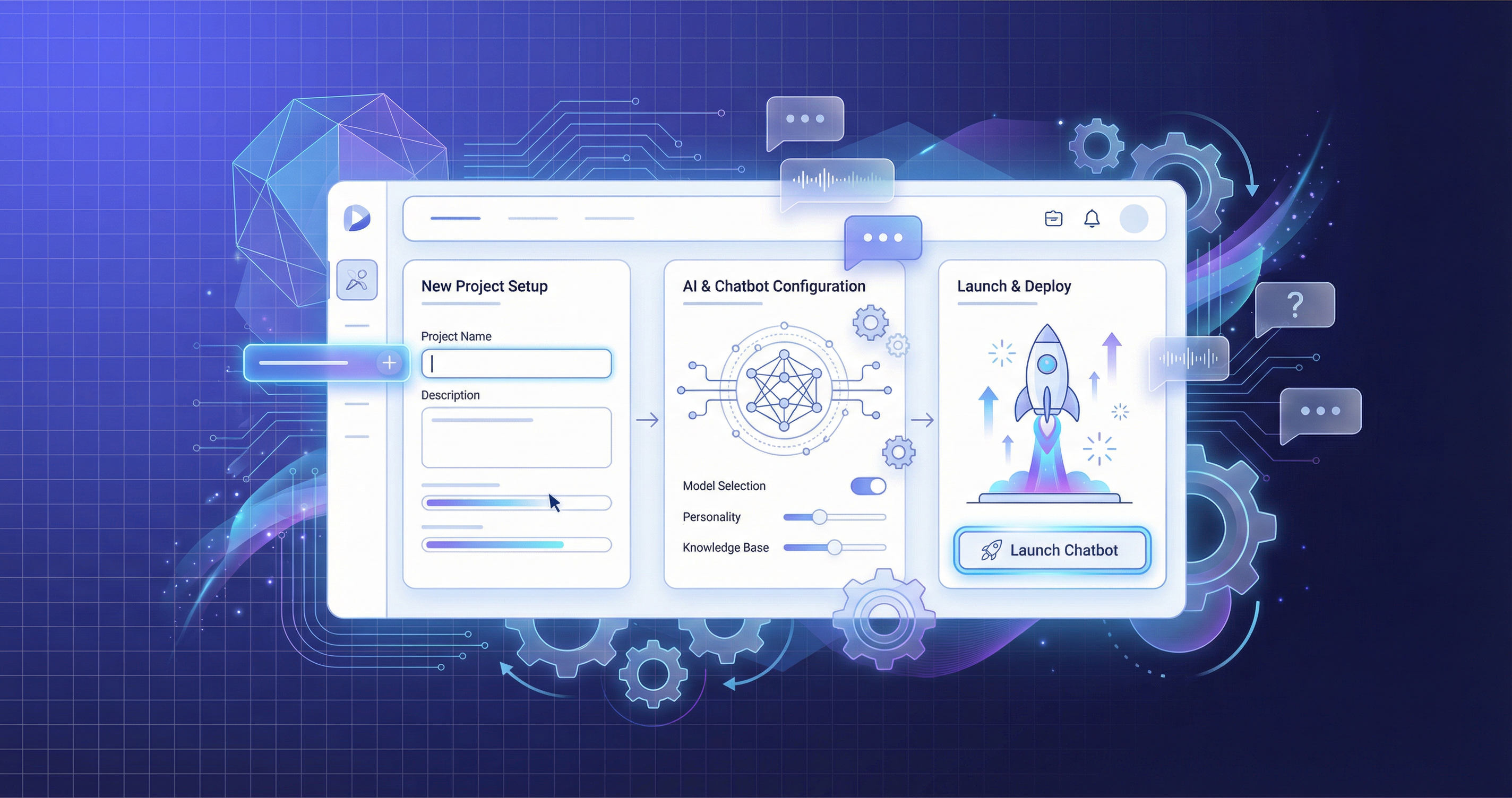
What You'll Build
By the end of this guide, you will have a fully working AI chatbot that understands your business, answers customer questions, and can be embedded on your website — all without writing a single line of code. We will walk through every screen in the Mugib portal so you know exactly what to click.
Step 1: Create Your Account
Head to app.mugib.com/register and fill in your name, email, and password. Once you verify your email, you are in. You land on the Dashboard where you can see your projects, usage stats, and quick actions.
Step 2: Create a New Project
Click the "New Project" button on the Projects page. You will need to provide:
- Project Name — Something internal like "Customer Support Bot" or "Sales Assistant".
- Bot Display Name — The name your customers will see, e.g. "Maya" or "Support Agent".
- Language — Choose from 30+ languages. This sets the primary language for AI responses (the bot can still understand other languages).
- AI Model — Pick the model that fits your needs.
Hit Create and you will be redirected to the Builder Wizard — a guided 3-step setup that gets you from zero to a working bot.
Step 3: The Builder Wizard
The Builder is the fastest path to a working bot. It walks you through three steps:
Step 3.1 — Train Your Knowledge Base
This is where your bot gets smart. You have several options:
- AI Generate — Describe your business in a few sentences and the AI will create a set of Q&A entries for you. Review them, edit what you like, and save.
- Manual Entry — Add individual knowledge entries with a title, content, and category.
- File Upload — Drag and drop your existing documents: PDF, DOCX, TXT, CSV, Excel, JSON, HTML, or XML. The system extracts content automatically.
- Bulk Import — Upload a JSON file with multiple entries at once.
The more quality content you add, the better your bot will answer. Don't worry about getting it perfect now — you can always add, edit, or remove entries later from the Knowledge Base page.
Step 3.2 — Set Your System Prompt
The system prompt defines your bot's personality, tone, and boundaries. You can:
- AI Generate — Click the button and the AI will draft a system prompt based on your project settings and knowledge base. It is a great starting point.
- Write Your Own — Fully customize the instructions. Tell the bot who it is, how to respond, what to avoid, and when to escalate.
For example, a system prompt might say: "You are Maya, a friendly customer support agent for Acme Corp. Answer questions based only on the provided knowledge base. If you don't know the answer, apologize and suggest contacting [email protected]."
Step 3.3 — Done!
That's it. Your bot is now live. You get two options: Go to Settings for fine-tuning, or Test Your Bot to see it in action immediately.
Step 4: Test in the Playground
The Playground is your private sandbox. It works exactly like your customers will experience the bot — including real-time streaming responses (words appear as the AI types them, just like ChatGPT).
Here you can:
- Ask questions and see how the bot responds.
- View KB source citations — the bot tells you which knowledge base entry it used and shows a similarity score so you know how confident it is.
- Track token usage per message.
- Start a new chat session to simulate a fresh customer conversation.
If the bot gives a wrong answer, go back to the Knowledge Base and add or fix the relevant entries. Then test again.
Step 5: Fine-Tune in Settings
Once your bot works in the Playground, head to Settings to customize further:
- Chat Messages — Set the welcome message customers see when they open the chat, the "out of scope" fallback, and the error message.
- Custom Variables — Define variables like
{{BUSINESS_HOURS}}or{{RETURN_POLICY}}that you can reference in prompts. Update them in one place and they change everywhere. - Quick Replies — Add up to 6 suggested buttons that appear in the chat widget (e.g. "Pricing", "Contact Sales", "Track Order").
- Rate Limits — Control how many messages a single user can send per minute to prevent abuse.
- API Key — Copy your API key if you want to integrate programmatically.
Step 6: Embed the Chat Widget on Your Website
This is where the magic happens. Go to the Channels page and you will find the Web Widget integration. To embed the chatbot on your website, add a single script tag to your HTML:
<script
  src="https://cdn.mugib.com/widget.js"
  data-api-key="YOUR_API_KEY"
  data-theme="#6366f1"
  data-lang="en"
></script>
That's literally one line of code. The widget supports:
- Custom colors — Match your brand with the
data-themeattribute. - Bilingual support — Switch between English, Arabic, or any language with
data-lang. - RTL layout — Automatic right-to-left support for Arabic and Hebrew.
- Real-time streaming — Responses appear word-by-word using Server-Sent Events (SSE).
- Mobile responsive — Works perfectly on phones and tablets.
Step 7: Connect More Channels
Your bot doesn't have to live only on your website. From the Channels page you can connect:
- Telegram — Paste your Bot Token from BotFather.
- WhatsApp — Connect via the WhatsApp Business API.
- Instagram DM — Link your Instagram business account.
- Facebook Messenger — Connect your Facebook page.
- Email — Auto-respond to incoming customer emails.
- SMS — Reply to text messages automatically.
Every channel uses the same AI engine and the same knowledge base. Train once, deploy everywhere.
What's Next?
Once your bot is running, you can:
- Monitor conversations in the Sessions page.
- Track performance in Analytics — see message volumes, response times, and customer satisfaction.
- Review Unanswered Questions to discover knowledge gaps and continuously improve your bot.
- Invite Team Members to collaborate on the project with role-based access (Owner, Admin, Editor, Viewer).
You don't need to be a developer or an AI expert. Mugib was built so that anyone — a business owner, a marketer, a support manager — can create and manage an intelligent AI assistant in minutes.
ماذا ستبني
بنهاية هذا الدليل، سيكون لديك روبوت دردشة ذكي يعمل بالكامل، يفهم طبيعة عملك ويجيب على أسئلة عملائك، ويمكنك تضمينه في موقعك الإلكتروني — كل ذلك دون كتابة سطر برمجي واحد. سنستعرض كل صفحة في المنصة خطوة بخطوة.
الخطوة 1: أنشئ حسابك
توجّه إلى app.mugib.com/register وأدخل اسمك وبريدك الإلكتروني وكلمة المرور. بعد تأكيد بريدك الإلكتروني، ستصل إلى لوحة التحكم حيث يمكنك استعراض مشاريعك وإحصائياتك والإجراءات السريعة.
الخطوة 2: أنشئ مشروعاً جديداً
انقر على زر "New Project" في صفحة المشاريع. ستحتاج إلى إدخال:
- اسم المشروع — اسم داخلي مثل "روبوت خدمة العملاء" أو "مساعد المبيعات".
- اسم الروبوت — الاسم الذي سيراه العملاء، مثل "مايا" أو "مساعد الدعم".
- اللغة — اختر من أكثر من 30 لغة. هذا يحدد اللغة الأساسية لردود الروبوت (مع قدرته على فهم لغات أخرى).
- نموذج الذكاء الاصطناعي — اختر النموذج المناسب لاحتياجاتك.
انقر على Create وسيتم توجيهك إلى معالج البناء (Builder Wizard) — إعداد موجّه من 3 خطوات ينقلك من الصفر إلى روبوت يعمل.
الخطوة 3: معالج البناء (Builder)
معالج البناء هو أسرع طريقة لتشغيل الروبوت. يمر بثلاث خطوات:
الخطوة 3.1 — تدريب قاعدة المعرفة
هنا يصبح الروبوت ذكياً. لديك عدة خيارات:
- التوليد بالذكاء الاصطناعي — صِف نشاطك التجاري في جملتين، وسيُنشئ الذكاء الاصطناعي مجموعة من الأسئلة والأجوبة. راجعها وعدّل ما تشاء ثم احفظ.
- الإدخال اليدوي — أضف مدخلات المعرفة واحدة تلو الأخرى بعنوان ومحتوى وتصنيف.
- رفع الملفات — اسحب وأفلت ملفاتك الحالية: PDF، DOCX، TXT، CSV، Excel، JSON، HTML، أو XML. يستخرج النظام المحتوى تلقائياً.
- الاستيراد الجماعي — ارفع ملف JSON يحتوي على عدة مدخلات دفعة واحدة.
كلما أضفت محتوى أكثر وأفضل، كانت إجابات الروبوت أدق. لا تقلق بشأن الكمال الآن — يمكنك دائماً إضافة المدخلات وتعديلها وحذفها لاحقاً من صفحة قاعدة المعرفة.
الخطوة 3.2 — تعيين موجّه النظام (System Prompt)
موجّه النظام يحدد شخصية الروبوت ونبرته وحدوده. يمكنك:
- التوليد بالذكاء الاصطناعي — انقر على الزر وسيقوم الذكاء الاصطناعي بصياغة موجّه نظام بناءً على إعدادات مشروعك وقاعدة المعرفة. إنها نقطة انطلاق ممتازة.
- الكتابة بنفسك — خصّص التعليمات بالكامل. أخبر الروبوت من هو، وكيف يرد، وما يتجنبه، ومتى يُحوّل إلى الدعم البشري.
على سبيل المثال، قد يكون موجّه النظام: "أنتِ مايا، موظفة خدمة عملاء ودودة في شركة أكمي. أجيبي عن الأسئلة من قاعدة المعرفة المتوفرة فقط. إذا لم تعرفي الإجابة، اعتذري واقترحي التواصل مع [email protected]."
الخطوة 3.3 — اكتمل الإعداد!
هذا كل شيء. الروبوت جاهز للعمل الآن. لديك خياران: الذهاب إلى الإعدادات للضبط الدقيق، أو اختبار الروبوت لرؤيته يعمل مباشرة.
الخطوة 4: الاختبار في بيئة التجربة (Playground)
بيئة التجربة هي بيئتك التجريبية الخاصة. تعمل تماماً كما سيتعامل عملاؤك مع الروبوت — بما في ذلك الردود المتدفقة في الوقت الفعلي (تظهر الكلمات تباعاً مثل ChatGPT).
هنا يمكنك:
- طرح أسئلة ومشاهدة كيفية رد الروبوت.
- عرض مصادر الإجابة — يُظهر الروبوت أي مدخل من قاعدة المعرفة استخدمه ويعرض نسبة التطابق لتعرف مدى ثقته.
- تتبع استهلاك الرموز (Tokens) لكل رسالة.
- بدء محادثة جديدة لمحاكاة عميل جديد.
إذا أعطى الروبوت إجابة خاطئة، عُد إلى قاعدة المعرفة وأضف أو صحّح المدخلات ذات الصلة، ثم أعد الاختبار.
الخطوة 5: ضبط الإعدادات
بعد أن يعمل الروبوت في بيئة التجربة، توجّه إلى الإعدادات لمزيد من التخصيص:
- رسائل الدردشة — حدّد رسالة الترحيب التي يراها العميل عند فتح المحادثة، ورسالة "خارج النطاق"، ورسالة الخطأ.
- المتغيرات المخصصة — عرّف متغيرات مثل
{{BUSINESS_HOURS}}أو{{RETURN_POLICY}}يمكنك استخدامها في الموجّهات. عدّلها في مكان واحد وتتغير في كل مكان. - الردود السريعة — أضف حتى 6 أزرار مقترحة تظهر في أداة الدردشة (مثل "الأسعار"، "تواصل معنا"، "تتبع الطلب").
- حدود الاستخدام — تحكّم في عدد الرسائل التي يمكن لمستخدم واحد إرسالها في الدقيقة لمنع سوء الاستخدام.
- مفتاح API — انسخ مفتاح الـ API إذا كنت ترغب بالربط البرمجي.
الخطوة 6: تضمين أداة الدردشة في موقعك
هنا يبدأ السحر. توجّه إلى صفحة القنوات (Channels) وستجد تكامل أداة الويب (Web Widget). لتضمين روبوت الدردشة في موقعك، أضف وسم سكريبت واحداً إلى صفحتك:
<script
  src="https://cdn.mugib.com/widget.js"
  data-api-key="YOUR_API_KEY"
  data-theme="#6366f1"
  data-lang="ar"
></script>
حرفياً سطر برمجي واحد. تدعم الأداة:
- ألوان مخصصة — طابق هوية علامتك التجارية عبر خاصية
data-theme. - دعم ثنائي اللغة — بدّل بين الإنجليزية والعربية أو أي لغة عبر
data-lang. - تخطيط RTL — دعم تلقائي من اليمين إلى اليسار للعربية والعبرية.
- البث المباشر — تظهر الردود كلمة بكلمة باستخدام تقنية Server-Sent Events (SSE).
- تصميم متجاوب — يعمل بشكل مثالي على الهواتف والأجهزة اللوحية.
الخطوة 7: ربط قنوات إضافية
لا يجب أن يقتصر الروبوت على موقعك الإلكتروني فقط. من صفحة القنوات يمكنك ربط:
- تيليجرام — الصق رمز البوت (Bot Token) من BotFather.
- واتساب — اربط عبر WhatsApp Business API.
- رسائل انستقرام — اربط حساب انستقرام للأعمال الخاص بك.
- فيسبوك ماسنجر — اربط صفحتك على فيسبوك.
- البريد الإلكتروني — رد تلقائي على رسائل العملاء الواردة.
- الرسائل النصية SMS — رد على الرسائل النصية تلقائياً.
جميع القنوات تستخدم نفس محرك الذكاء الاصطناعي ونفس قاعدة المعرفة. درّب مرة واحدة، وانشر في كل مكان.
ما الخطوة التالية؟
بعد تشغيل الروبوت، يمكنك:
- مراقبة المحادثات في صفحة الجلسات.
- تتبع الأداء في التحليلات — استعرض حجم الرسائل وأوقات الاستجابة ورضا العملاء.
- مراجعة الأسئلة بلا إجابة لاكتشاف الثغرات وتحسين الروبوت باستمرار.
- دعوة أعضاء الفريق للتعاون على المشروع بصلاحيات مختلفة (مالك، مدير، محرر، مُشاهد).
لست بحاجة لأن تكون مبرمجاً أو خبيراً في الذكاء الاصطناعي. صُمّم مجيب ليتمكن أي شخص — صاحب عمل، مسوّق، مدير دعم — من إنشاء وإدارة مساعد ذكي في دقائق.